Z2Y 记时 Support Z2Y Remember Timer Support
Z2Y 记时 · 使用说明与支持
Z2Y 记时是一款本地优先的计时应用,把「计时(倒计时)」「记时(周期与纪念日)」「专注(分环节奏)」放在同一个界面里。完成一段之后会留下一枚印记,可以在时间簿里按日、周、月回看。应用不需要账号,不上传数据,也没有广告。
Z2Y Remember Timer is a local-first timing app that keeps countdowns, recurring reminders and anniversaries, and ring-based focus sessions in one place. Every finished session leaves a mark you can revisit in the time book by day, week, or month. There is no account, no data upload, and no ads.
- 平台 Platform:iPhone / iPad,iOS 或 iPadOS 16.4 或更高版本
- 价格 Price:App Store ¥1.00 / $0.99
- 当前版本 Current version:2.0.0(可在应用内「设置」底部核对)
快速开始
- 从 App Store 安装 Z2Y 记时并打开,无需注册或登录。
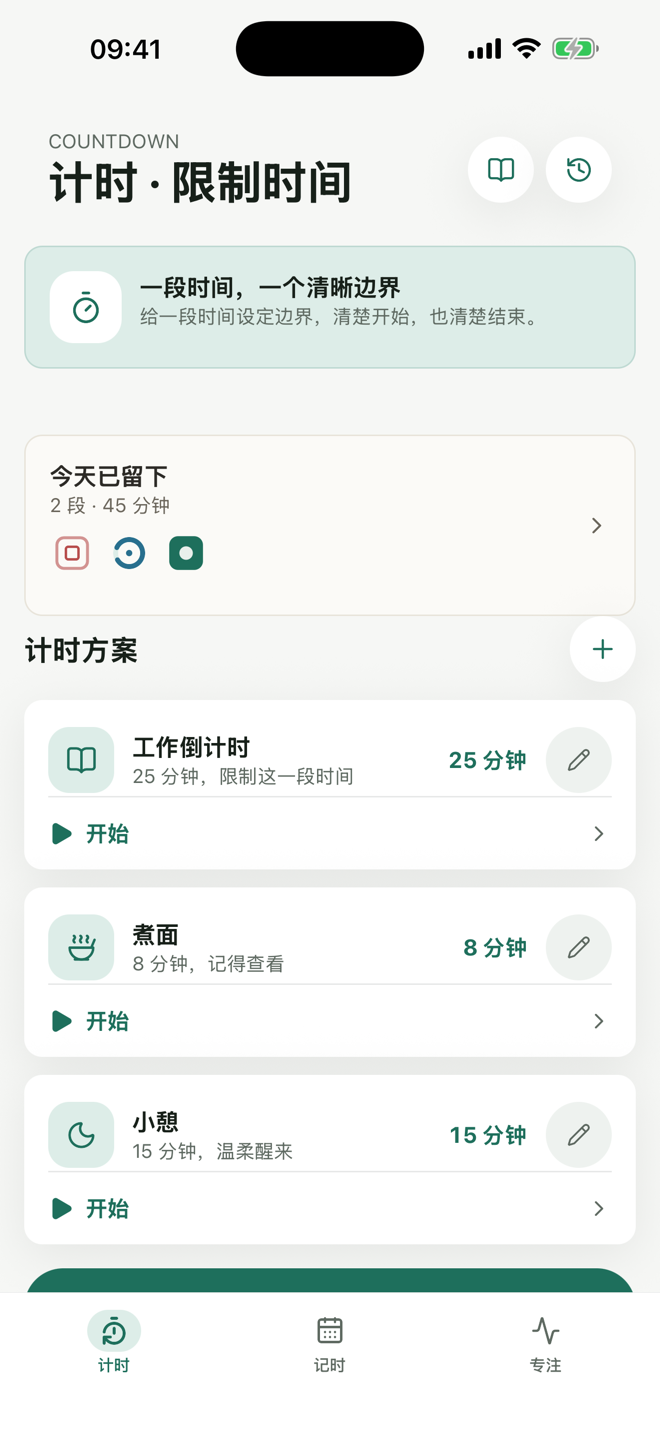
- 底部固定三个板块:计时、记时、专注。三个板块各自有历史入口,右上角还有时间簿入口。
- 先跑一段最简单的计时:进入「计时」,直接点某个方案的「开始」;需要临时时长就用「新建自定义计时」。
- 想让应用主动提醒你,就去「记时」新建一条:例如「喝水 · 每个工作日 · 10:30」。
- 想安静地做一段长任务,就去「专注」建立一个节奏,例如 20 分钟拆成 3 环。
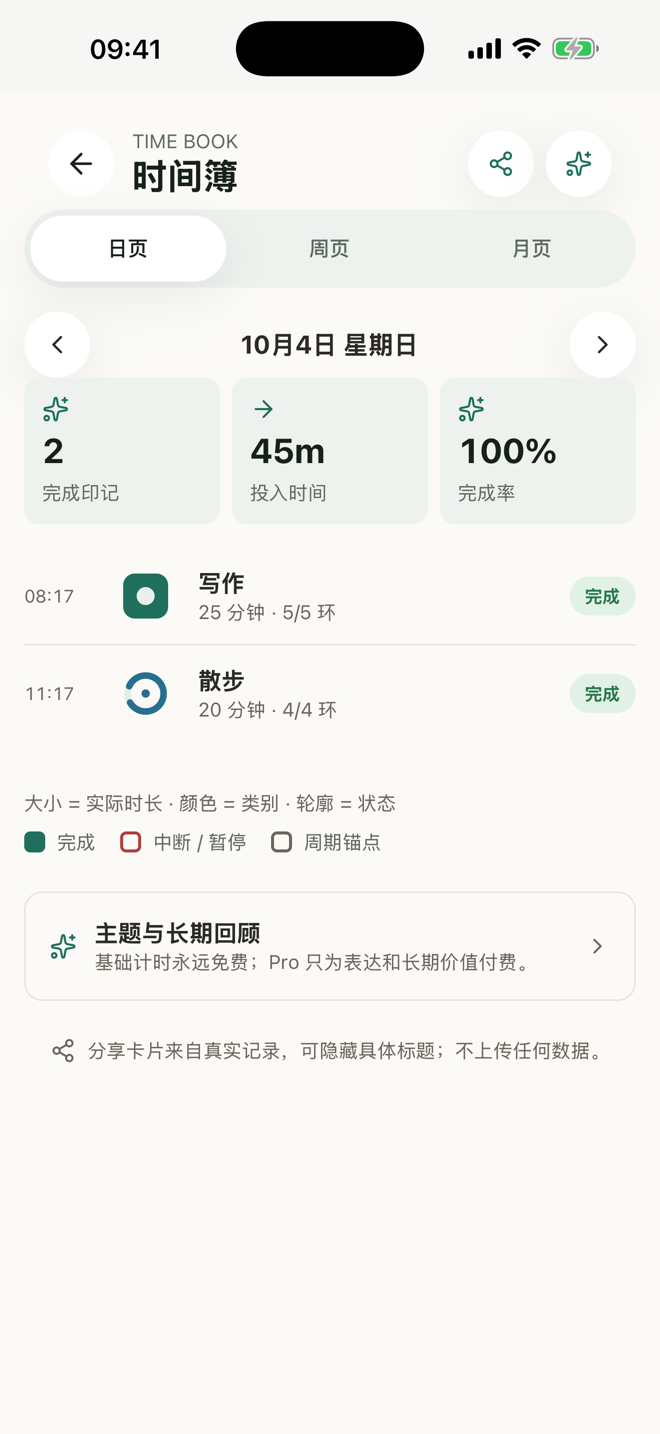
- 完成后打开「时间簿」,看看今天留下的印记。
三个板块怎么用
计时 · 限制时间
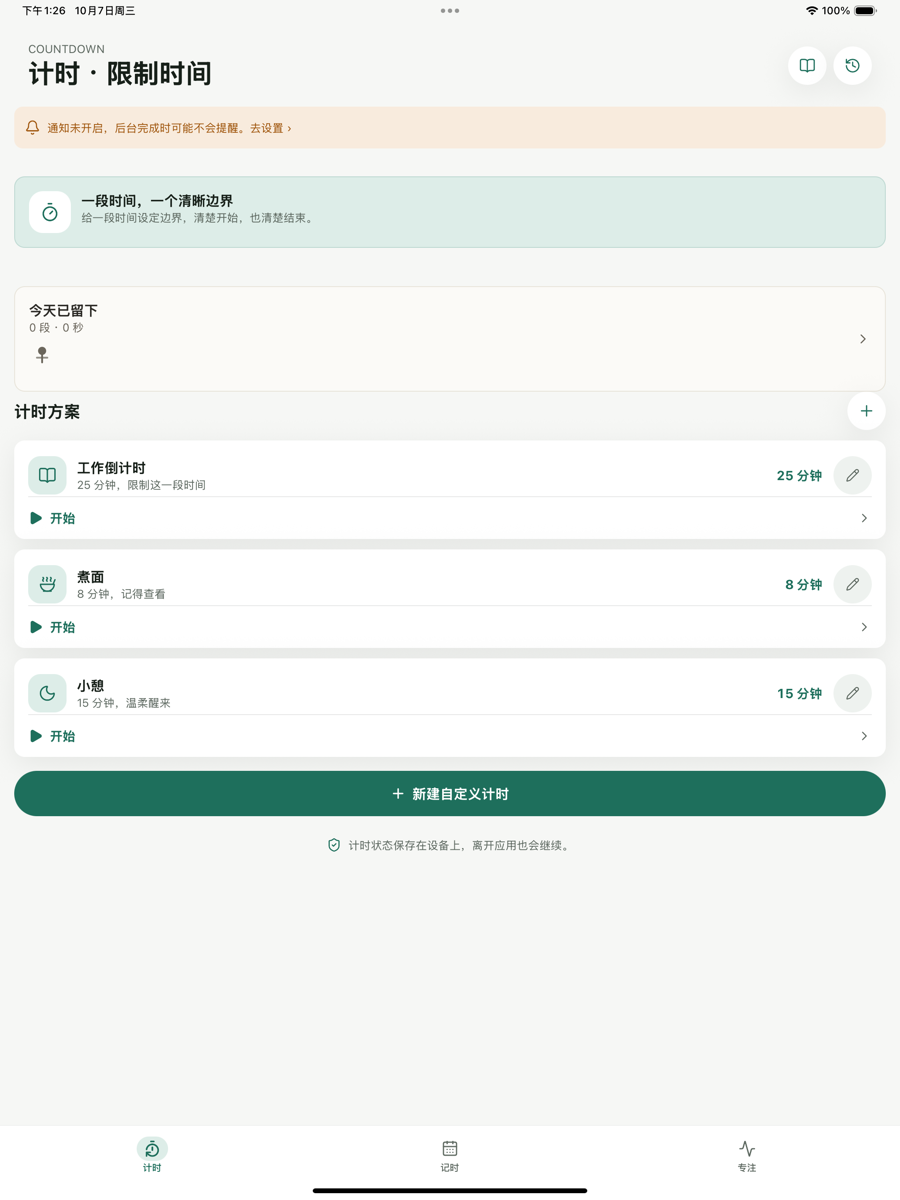
- 方案列表里是你可以反复使用的时长,例如「工作倒计时 25 分钟」「煮面 8 分钟」「小憩 15 分钟」。
- 点「开始」立刻进入运行页;也可以点铅笔图标编辑方案(名称、图标、时长、完成提示),不需要的方案可以直接删除。
- 「新建自定义计时」用于一次性时长:设置时、分、秒即可开始,不必先命名。
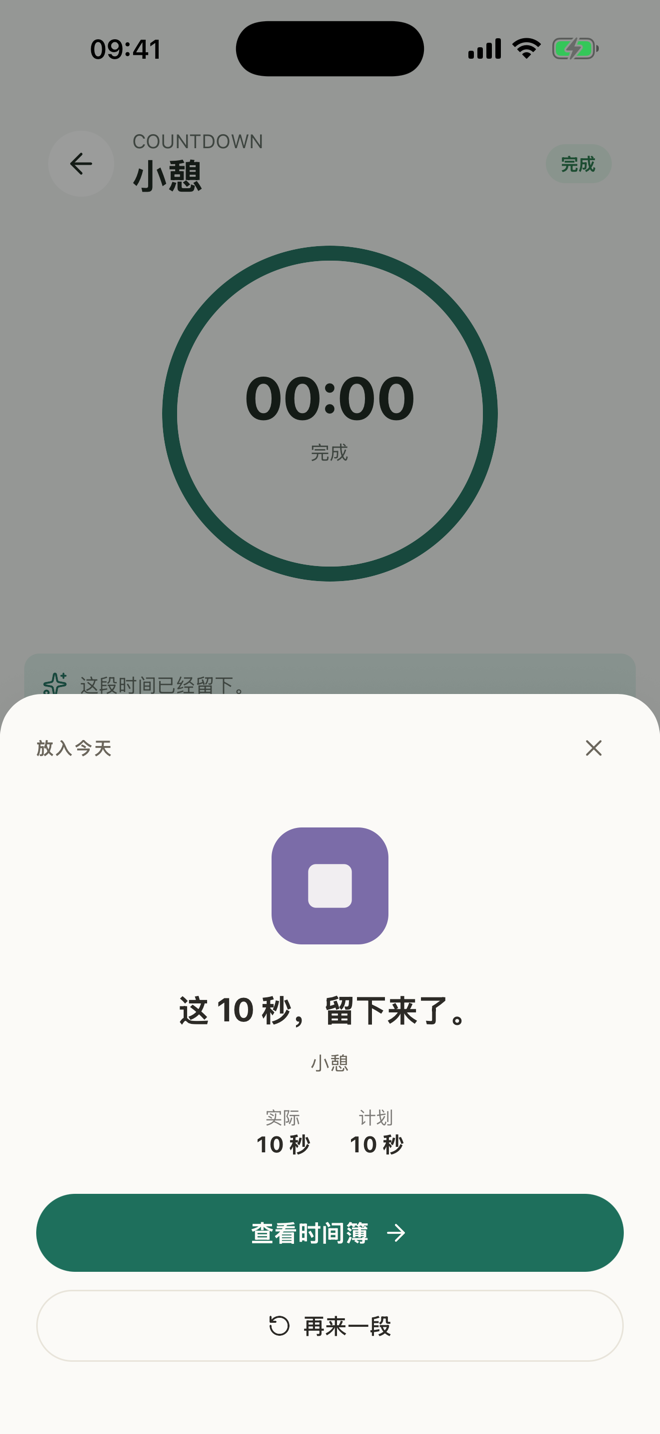
- 运行页可以暂停、继续和结束;结束后这段时长会进入历史,并出现在时间簿里。
记时 · 记住与纪念
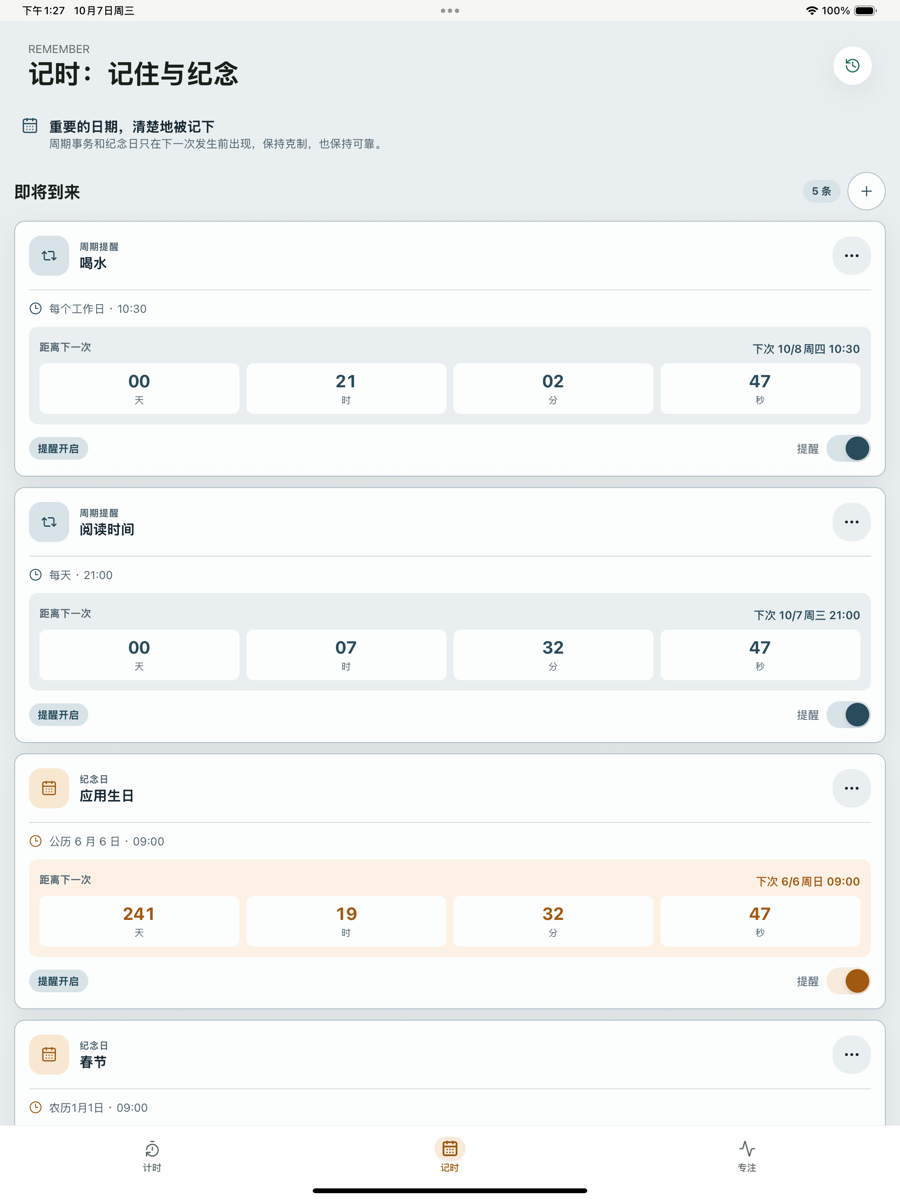
- 点「+」新建记时,填写名称、24 小时制时间,再选重复方式:每天、工作日、周末、每周、每月、每年。
- 选择「纪念日」时按年重复,并可选公历或农历;农历纪念日会换算到对应的农历日期。
- 每条记时都显示距离下一次的倒计时,并带一个独立开关,可以只暂停某一条而不删除它。
- 打开条目右侧的「…」菜单可以编辑或删除;删除后它尚未触发的系统提醒会一并取消。
- 记时只在下一次发生前出现,不堆叠提醒列表。
专注 · 感受节奏
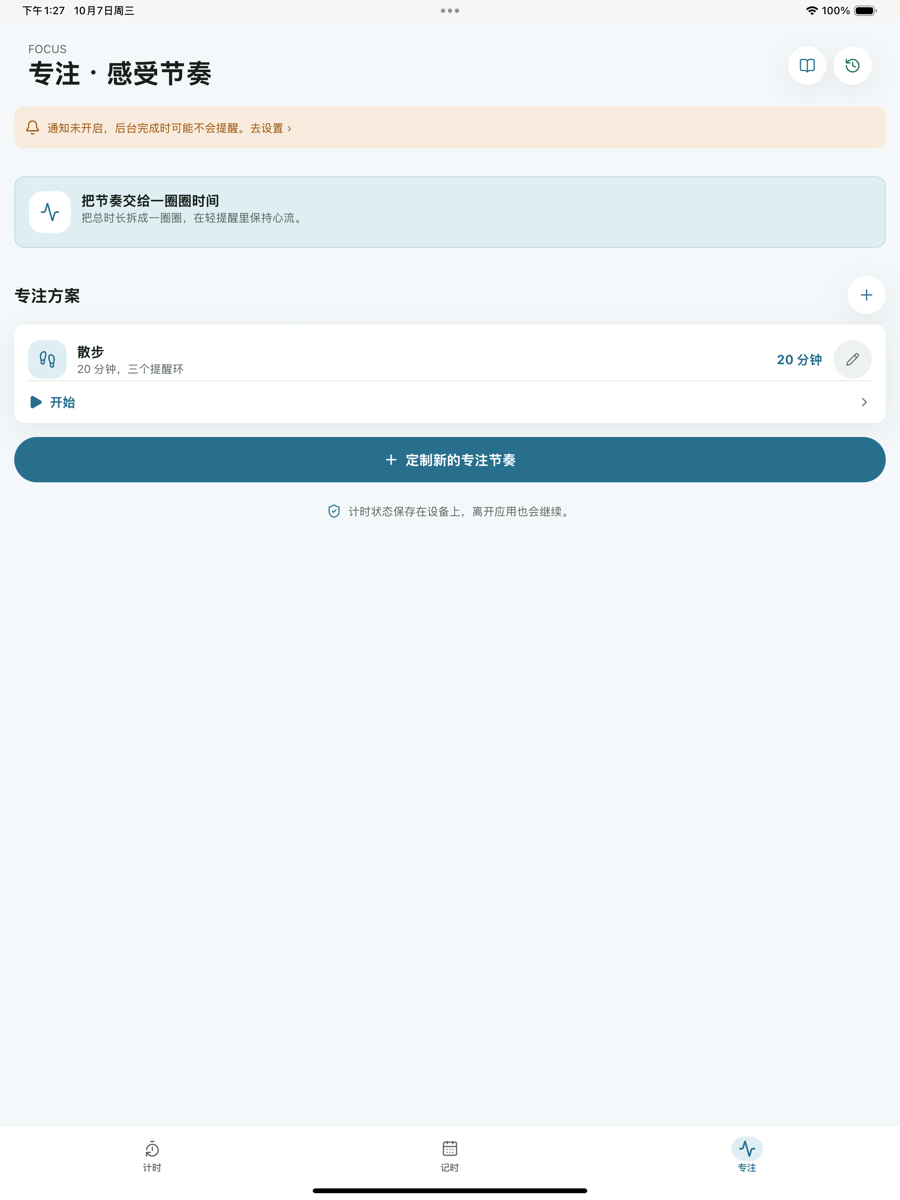
- 一个专注方案由「总时长 + 每环时长」构成,例如「散步 20 分钟,三个提醒环」。
- 运行页显示当前是第几环、已完成多少环,以及距离本环结束的时间;每完成一环会有一次轻提醒。
- 可以暂停、继续或结束;结束后本次的完成情况会被保留。
- 环的轻提醒在应用内显示,允许通知后也会在应用外提醒;拒绝通知不会打断专注本身。
时间簿与印记
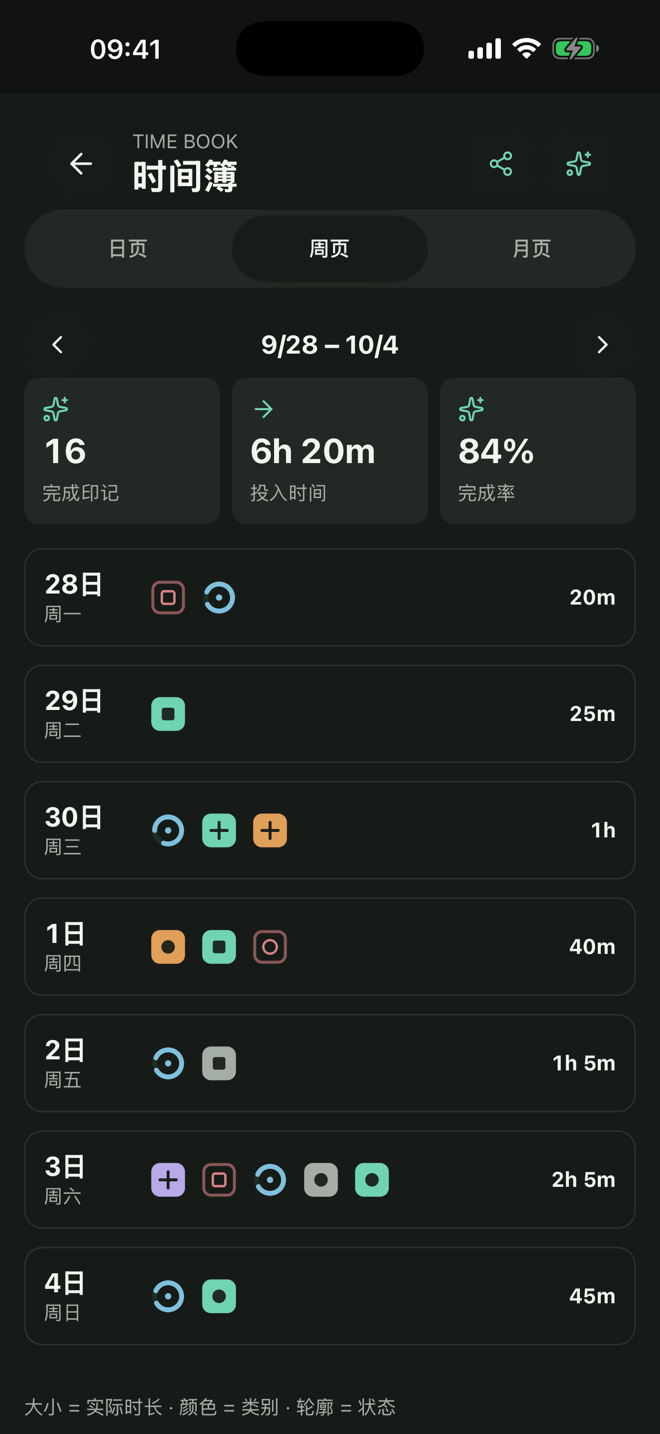
- 完成后会留下一枚印记:大小表示实际时长,颜色表示类别,轮廓表示状态(完成、中断 / 暂停、周期锚点)。
- 时间簿分日页、周页、月页,可以左右切换查看更早或更晚的区间。
- 日页、周页与月页都可以回看,年度长期回顾同样对所有用户免费。
- 右上角的分享按钮可以把当前区间的印记导出成分享卡片;卡片来自真实记录,可以选择隐藏具体标题,且不会上传任何数据。
全部功能免费
- 计时、记时、专注三个板块,完成提醒、后台与锁屏状态全部可用,应用内没有内购。
- 时间簿的日页、周页、月页与年度长期回顾,以及全部印记主题与页面纸张,都包含在免费版本里。
- 数据只保存在本机,可以随时导出 JSON / CSV。
通知、锁屏与后台
- 首次需要提醒时,系统会询问通知权限;在「设置 → 系统能力」里可以查看通知、精确调度、活动状态与调度恢复的当前状态。
- 权限被拒绝时,计时与时间簿仍然可以用;记时也会保留并显示下一次发生时间,只是不会在后台提醒。之后可以随时在系统设置里重新开启。
- 正在进行的会话状态保存在设备上,离开应用后计时继续按真实时间推进;iOS 上由系统通知中心维护提醒,锁屏实时活动是否可用可以在设置里查看。
数据与隐私
- 没有账号、没有云端、没有广告;方案、记录、印记与偏好都保存在设备上。
- 「设置 → 数据与隐私」可以导出 JSON / CSV 备份、从旧版数据导入,也可以查看本地诊断摘要。
- 由于没有云端同步,本机数据不会自动出现在新设备上;需要时请先导出备份,再在新设备上导入。
- 删除 App 或清除其存储会永久移除本机数据,且无法恢复。
Getting started
- Install Z2Y Remember Timer from the App Store and open it. No sign-up or login is required.
- Three sections live in the bottom bar: Countdown, Remember, and Focus. Each one has its own history entry, and the header also opens the time book.
- Run something simple first: open Countdown and tap Start on a plan, or use a custom countdown for a one-off duration.
- To let the app come to you, add an entry in Remember — for example “Water · weekdays · 10:30”.
- For a longer stretch of work, build a rhythm in Focus, such as 20 minutes split into 3 rings.
- When you are done, open the Time book and look at the marks you left today.
How the three sections work
Countdown — bound a stretch of time
- The plan list holds durations you reuse, such as a 25-minute work countdown, an 8-minute cooking timer, or a 15-minute nap.
- Tap Start to run one, or use the pencil to edit a plan (name, icon, duration, completion cue). Plans you no longer need can be deleted.
- New custom countdown is for one-off durations: set hours, minutes, and seconds and go — no name needed first.
- While running you can pause, resume, or end. Finished sessions are recorded in history and appear in the time book.
Remember — keep and commemorate
- Tap + to add an entry: name, 24-hour time, then a repeat rule — daily, weekdays, weekends, weekly, monthly, or yearly.
- Anniversaries repeat yearly and can use the Gregorian or lunar calendar; lunar anniversaries are resolved to the matching lunar date.
- Every entry shows a countdown to its next occurrence and has its own switch, so you can pause one without deleting it.
- Open the entry menu to edit or delete it. Deleting also cancels the system reminders it had scheduled.
- Entries only surface before their next occurrence, so the list never becomes a backlog.
Focus — feel the rhythm
- A focus plan is a total duration plus a ring length, such as a 20-minute walk split into three rings.
- The running screen shows the current ring, how many rings are done, and the time left in this ring; each finished ring gives one gentle cue.
- You can pause, resume, or stop, and the result of the session is kept.
- Ring cues appear in the app, and also outside the app once notifications are allowed. Denying notifications does not break the focus session itself.
Time book and marks
- A finished session leaves a mark: size is the real duration, colour is the category, and outline is the status (completed, interrupted / paused, or a recurring anchor).
- The time book has day, week, and month pages; move left and right to reach earlier or later ranges.
- Day, week, and month pages are all available, and the yearly long-term review is included too.
- The share button in the header exports the marks of the current range as a share card. Cards come from real records, can hide specific titles, and are never uploaded.
Everything is free
- Countdown, remember, and focus are fully available, including completion alerts, background status, and lock-screen projection. There are no in-app purchases.
- The time book’s day, week, and month pages, the yearly review, and every mark theme and paper are included.
- Data stays on your device and can be exported as JSON / CSV at any time.
Notifications, lock screen, and background
- The first time a reminder is needed, iOS asks for notification permission. Under Settings → System capability you can check notifications, exact scheduling, activity status, and schedule recovery.
- If permission is denied, the timer and time book still work, and Remember entries still keep and show their next occurrence time — they just will not alert you in the background. You can re-enable notifications later in system settings.
- A running session is stored on the device, so it continues on real time after you leave the app. On iOS, reminders are maintained by the system notification centre; the lock-screen Live Activity status is shown in settings.
Data and privacy
- No account, no cloud, no ads: plans, records, marks, and preferences stay on your device.
- Settings → Data & privacy lets you export JSON / CSV backups, import legacy data, and review the local diagnostics summary.
- Because there is no cloud sync, local data does not appear on a new device automatically. Export a backup first, then import it on the new device.
- Deleting the app or clearing its storage removes local data permanently.
iPad
同一份数据在 iPhone 与 iPad 上共用一套界面语言:计时、记时与专注都会随屏幕放大,记时条目在大屏上会展开完整的倒计时区块。
On iPad
The same interface language scales to iPad: countdown, remember, and focus all adapt, and entries expand into their full countdown blocks on the larger screen.
常见问题
为什么没有收到完成提醒?
先确认系统通知权限已允许,再回到应用内「设置 → 系统能力」查看通知状态。权限被拒绝时计时本身不受影响,只是不会有提醒;重新开启后即可恢复。
记时到点了却没有提醒?
检查该条记时的开关是否处于开启状态,并确认通知权限。即使权限被拒绝,条目仍会保留并显示下一次发生时间。
时间簿里为什么没有印记?
印记只在一次会话完成后产生。中断或暂停的会话会以开放轮廓记录,并不计入投入时间;周期锚点则来自记时的下一次发生日。
换新设备后数据不见了?
应用没有云端同步,数据只在本机。请在旧设备的「设置 → 数据与隐私」导出 JSON / CSV 备份,再在新设备上导入。
界面文字被裁切或显示异常?
请在「设置 → 外观」中切换一次浅色 / 深色,然后完全关闭并重新打开应用;如果启用了大号系统字体,部分数字可能被放大,可以调回标准字号后再试。
Troubleshooting
Why did I not get a completion alert?
Check that notification permission is allowed, then look at Settings → System capability inside the app. A denied permission does not stop the timer itself — you simply will not be alerted, and alerts return once you re-enable it.
A reminder did not fire?
Check that the entry’s switch is on and that notification permission is granted. Even when permission is denied, the entry keeps and shows its next occurrence time.
Why is there no mark in the time book?
Marks are only created when a session is completed. Interrupted or paused sessions are recorded with an open outline and do not count toward time invested, while recurring anchors come from the next occurrence of a Remember entry.
I changed devices and my data is gone.
There is no cloud sync — data lives on one device. On the old device, open Settings → Data & privacy and export a JSON / CSV backup, then import it on the new device.
Text is clipped or the layout looks wrong.
Switch between light and dark once in Settings → Appearance, then fully close and reopen the app. If you use a very large system text size, some numbers scale up; return to the standard size and try again.
联系支持
需要帮助请发送邮件至 petterobam@gmail.com。请在邮件中注明:
- 设备型号与 iOS / iPadOS 版本
- 应用版本(见「设置」底部)
- 复现问题时的具体操作步骤
- 预期结果与实际结果
- 问题截图或完整错误信息
请不要提交密码、支付信息或其他敏感信息。支持请求通常会在三个工作日内处理。
Contact support
Email petterobam@gmail.com and include:
- Device model and iOS / iPadOS version
- App version (shown at the bottom of Settings)
- The exact steps that reproduce the issue
- Expected and actual result
- A screenshot or the full error message
Do not include passwords, payment details, or other sensitive information. Support requests are normally reviewed within three business days.